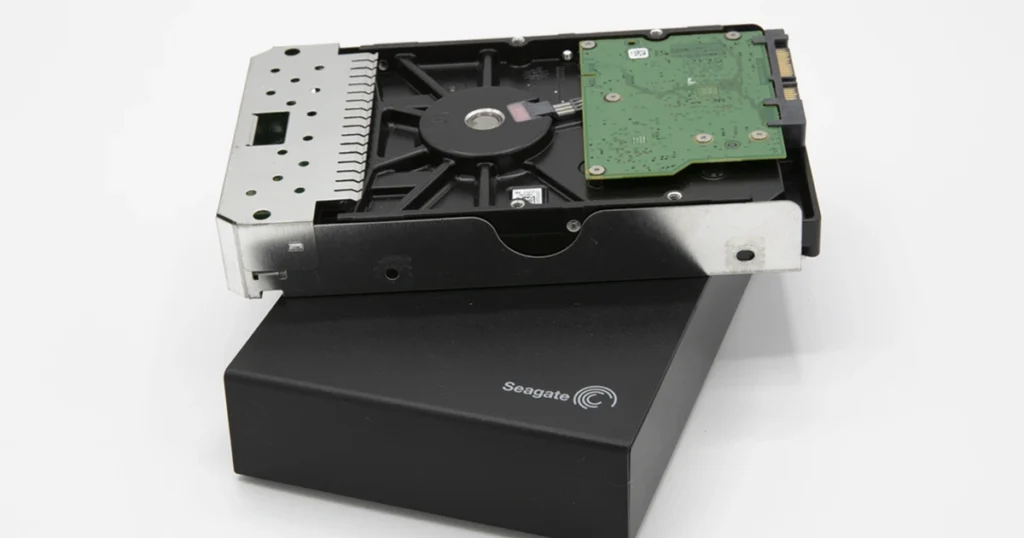
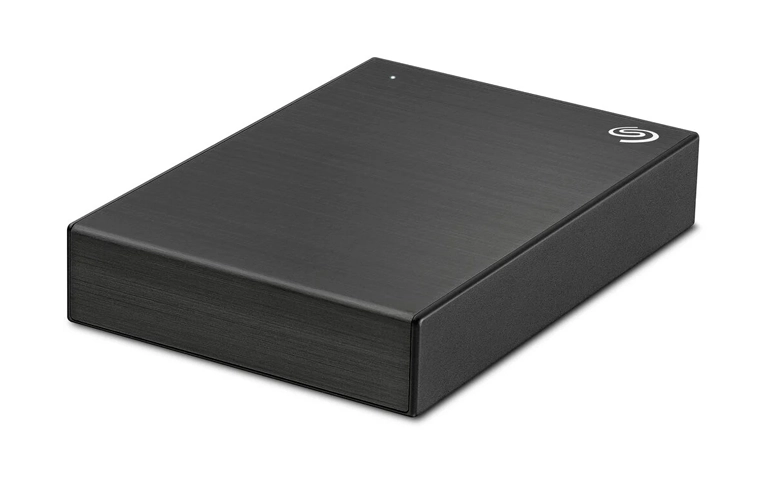
When a Seagate external drive is not working, the failure is usually in one of three areas: power, the USB connection or bridge, or the hard drive itself.
You might see a light but no detection, detection but no access, format prompts, or random disconnects. Each symptom points to a different risk level.
The main mistake is forcing fixes through repeated retries, repair scans, or formatting. Those actions can reduce recovery options.
This guide focuses on safe checks, quick triage, and clear stop points when recovery is the smarter move.
Data First: Stop the Damage
- Stop using the drive immediately if it contains important data. Any write activity can worsen corrupted files or bad sectors.
- Do not format the drive, even if Windows or macOS suggests it.
- Do not run CHKDSK, Disk Utility First Aid, or “repair” prompts that write changes.
- Avoid repeated plug and unplug cycles. If the drive is unstable, power cycles can accelerate failure.
- If you hear clicking or beeping, power it down and stop testing. Those symptoms can indicate physical risk.
Industry-Leading 99% Success Rate
No hidden fees. No surprises. Just expert data recovery you can trust. We handle everything from simple file loss to extreme data recovery cases. If we can’t recover your data, no one can.
Fast Triage (Power, Cable, Port, Hub)
- Connect the drive directly to the computer. Avoid USB hubs, docks, and front-panel ports for the first test.
- Swap the USB cable. Cable failure is common and can mimic drive failure.
- Try one alternate USB port on the same machine, then one alternate machine once. Do not keep cycling endlessly.
- If the drive requires external power, confirm the power adapter is the correct one and is stable. Low power can cause spinning issues and disconnects.
Quick signals
- Light on, no detection anywhere: often cable, port, or USB bridge problem, but can also be the drive.
- Detects sometimes, disappears: treat as unstable and minimize retries.
- Detected but cannot open: likely file system or disk health issue. Stop write actions.
What “Not Working” Means (Symptoms Matrix)
| What you observe | What it typically points to | Risk level | Best next move |
|---|---|---|---|
| No light, no spin | Power or enclosure failure | Medium to High | Verify power and cable once, then stop |
| Light on, no detection | Cable, port, USB bridge, or drive not enumerating | High | Swap cable and port once, avoid repeated testing |
| Detected, cannot open | File system corruption or disk health issues | High | Do not repair or format, shift to recovery mindset |
| Format prompt or RAW | File system damage | High | Do not format, preserve state |
| Beeping or clicking | Power issue or mechanical failure | Critical | Power down immediately |
| Disconnects randomly | Unstable power, bridge issues, or degrading drive | High | Minimize power cycles, stop DIY retries |
Don't Let Data Loss Ruin Your Business
Minimize business disruption. We retrieve lost data fast, so you can focus on what matters.
Windows and Mac Checks That Matter
Windows
- Check Disk Management. If the drive appears with a size, Windows detects it.
- If it shows RAW, Unallocated, or Not Initialized, do not format or initialize.
- If it shows as a healthy partition but is missing a drive letter, assigning a letter may restore visibility.
Mac
- Open Disk Utility and select Show All Devices. If the drive appears on the left, macOS detects it.
- If it appears but will not mount, avoid forcing changes. That often signals corruption or disk health issues.
If the drive is detected but access fails, stop repair prompts and shift to recovery logic. If the drive is not detected anywhere after basic cable and port checks, treat it as a hardware risk and limit further power cycles.

If It Is Beeping or Clicking (What That Indicates)
Beeping or clicking is not a normal external drive symptom. It typically signals either insufficient power or a mechanical issue inside the drive, and both scenarios can worsen quickly with repeated power on attempts.
If you hear either sound, power the drive down and stop testing. Do not keep reconnecting it to different ports, and do not run scans or repairs.
For deeper guidance on this specific symptom, see Seagate external hard drive beeping.
Emergency Data Recovery Services
Unexpected data loss? Whether it’s a crashed system, failed storage device, or accidental deletion, our 24/7 emergency recovery service ensures priority assistance to retrieve your critical data.
If It Is Not Showing Up (Next Moves)
If the Seagate external drive is not showing up, focus on controlled checks that do not create write activity.
Start with the connection path. Swap the USB cable, avoid hubs, and test one alternate port. If the enclosure uses external power, confirm stable power delivery. Then test on one other computer once. If it remains invisible or appears intermittently, stop repeated cycling.
If the drive shows in Disk Management or Disk Utility but cannot be opened, do not format and do not run repair prompts. That is usually a corruption or disk health scenario where preservation beats experimentation.
For a deeper walkthrough, see Seagate external hard drive not showing up.
Conclusion and Next Step
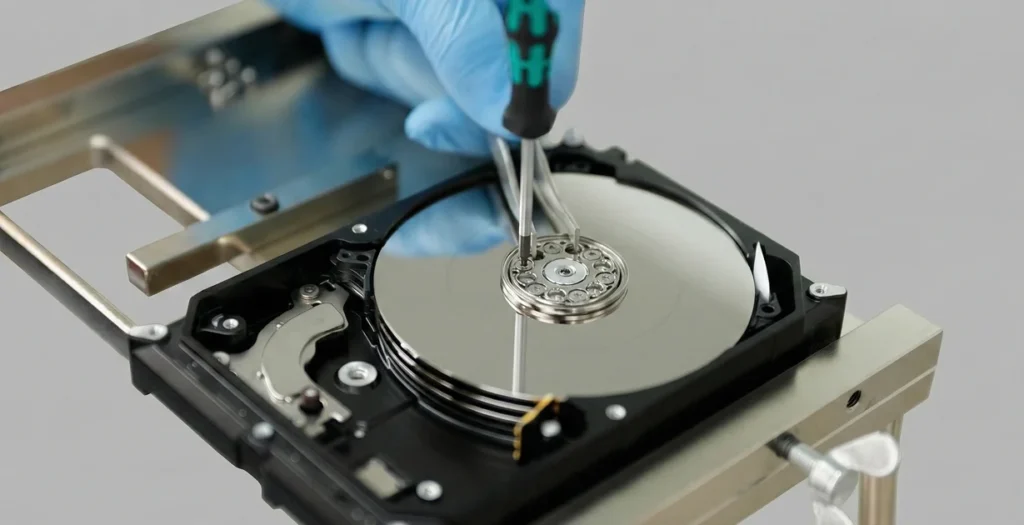
If your Seagate external drive is not working, the objective is not to force it back to life. The objective is to identify whether this is a connection issue, a file system problem, or a drive health failure, then stop before you reduce recoverability.
If the drive is detected but inaccessible, or if it is beeping, clicking, or disconnecting, shift to a controlled recovery workflow. Formatting and repair scans are the typical failure multipliers in these cases.
For recovery options, see External hard drive recovery.
Industry Certifications
Trusted by leading organizations and certified by industry authorities